

Editing text in an image means replacing words embedded in the image rather than adding a new text layer. Upload a JPG, PNG, or WebP file, including photos and screenshots, then review the replacement before downloading.
To edit text in an image, replace the existing words rather than adding a new text layer. Upload the image, enter the existing and replacement text, then review the result for consistency with the surrounding typography, lighting, and background.
If you still have the PSD, Figma, Canva, or layered source file, editing the real text layer is usually cleaner. Use the AI workflow when the file is flattened and the source is unavailable.
| Detail | Current value |
|---|---|
| Supported uploads | JPG / JPEG, PNG, WebP |
| Maximum upload | 10 MB |
| Included preview | 1 per account, once |
| Preview output | 512 px |
| Standard paid output | 2K |
| Site watermark | None |
Use this editor to replace text embedded in an image. It is designed to reconstruct the original text area and blend the replacement with the surrounding style.
Use an add-text tool to place a new caption, label, or overlay on an image. The existing text remains unchanged.
Use OCR to extract copyable text from an image. OCR reads the text without modifying the image.
When the source file is gone, the designer is unavailable, or the asset is already live, replace the wrong words while keeping the original design intact.


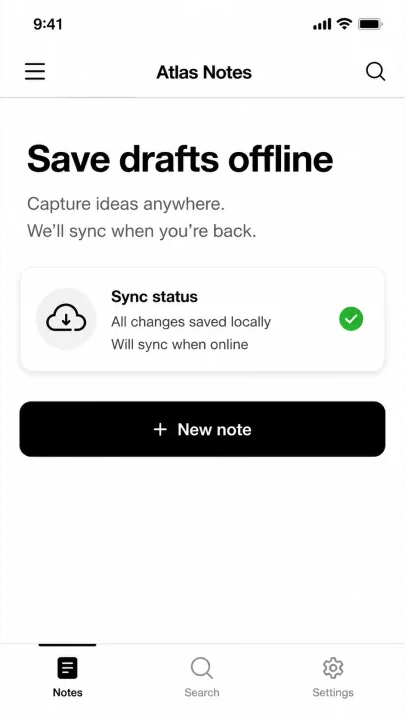
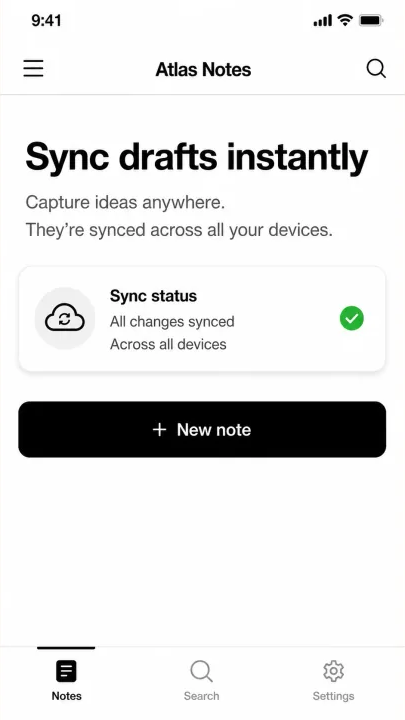
Upload the image, enter the current words and the replacement words, accept the use policy, then generate. Review the result before downloading or publishing.
Yes, when the words are visible and readable. Upload the image, type the old text and new text, and optionally brush the target area for a tighter AI edit.
The first login grants one lifetime preview credit per account. It is preview-limited, not an endless free plan; repeated or higher-resolution text edits use paid credits.
No. Adding text places a new layer or caption on top. Editing existing image text means replacing visible words that are already part of the image.
No. Image to text extracts words from a picture. This tool edits the picture itself so the visible wording is different.
Yes. JPG, JPEG, PNG, WebP, photos, and screenshots can be uploaded from desktop or mobile browsers. Clear, straight, high-resolution text usually edits best.
The current workflow is for replacing visible text, not standalone watermark removal. Do not use it to hide ownership, payment, identity, or record details.
The AI tries to match nearby font style, color, spacing, lighting, texture, and background. It cannot promise exact font recovery from a flattened image.
Yes. The browser workflow is designed for quick replacements when you do not want to rebuild the image in Photoshop, Figma, or a layered design file.
Clear JPG, PNG, WebP, photo, poster, label, menu, sign, or screenshot images with readable text and enough surrounding background usually work best.
Do not edit IDs, passports, bank statements, receipts, official seals, payment records, private chats, or screenshots meant to deceive another person or institution.