Edit text in screenshot for honest product updates
Use this screenshot text editor for product screenshots, help-center steps, app-store previews, and internal UI concepts you own. Keep every edit accurate, authorized, and clearly separated from chats, payments, records, or evidence.
When is it appropriate to edit text in screenshot images?
It is appropriate to edit text in screenshot images when you control the product, documentation, or concept deck and the replacement communicates a truthful state. Do not use screenshot editing to alter private messages, payments, account states, approvals, identity records, or anything a viewer could treat as evidence.
Edit text in screenshot examples for product teams.
These original screenshot examples show large, readable UI labels and clear before/after changes, so the edit text in screenshot workflow is easy to understand without copying another product.
beforeafter
HELP CENTERNAV LABEL RENAMED
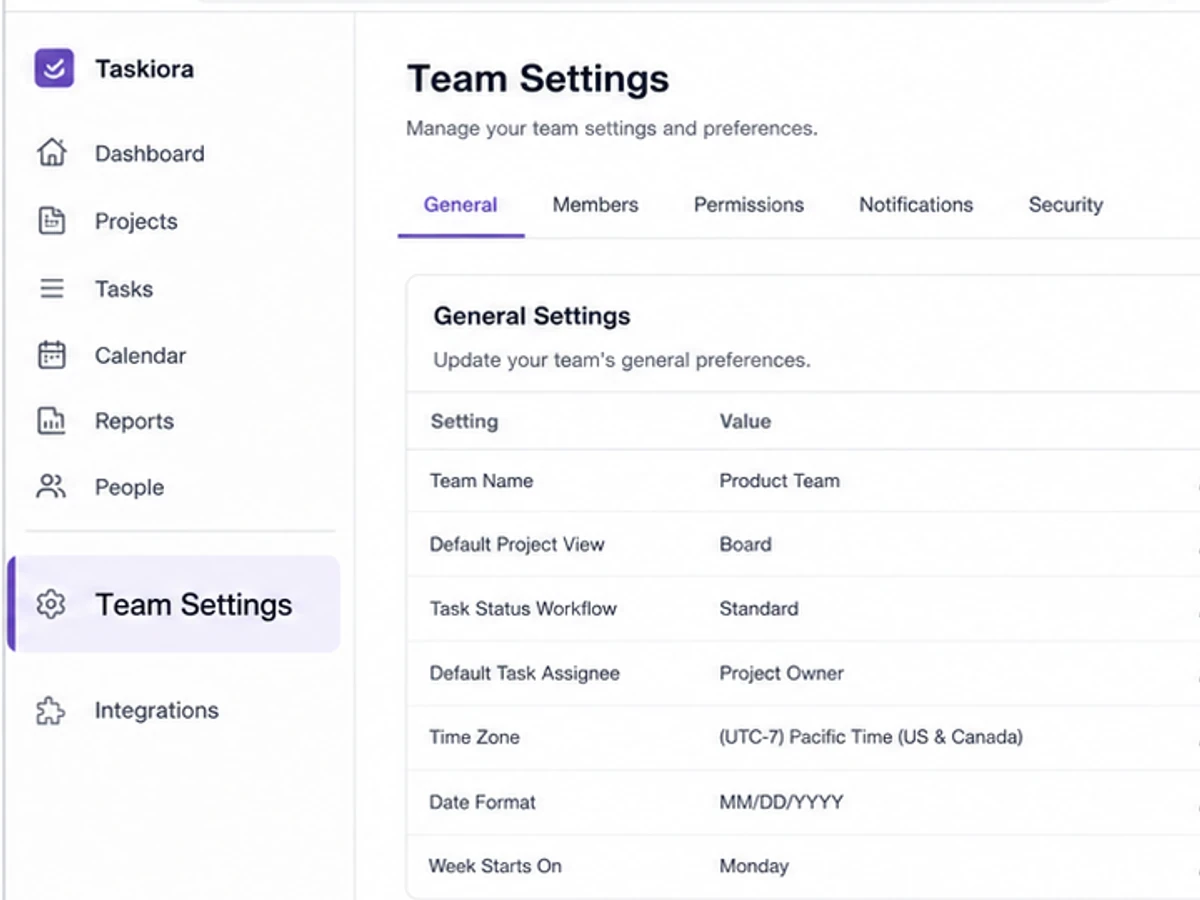
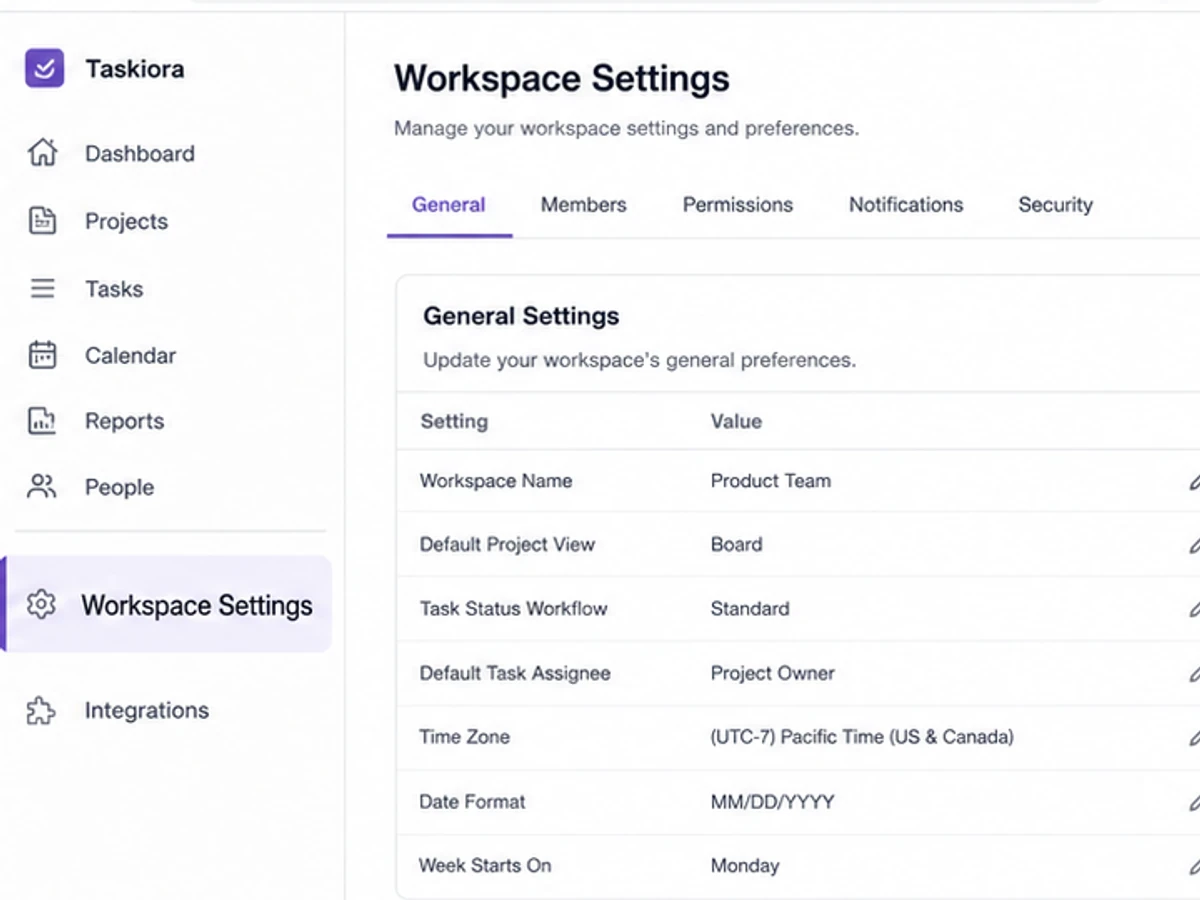
Edit text in screenshot when a product menu label changes
A documentation screenshot still says Team Settings after the released interface renamed the menu. Update the owned product screenshot while keeping the sidebar, tabs, table rows, and browser chrome visually consistent.
beforeTeam Settings->afterWorkspace Settings
beforeafter
APP STORE CREATIVEFEATURE COPY UPDATED
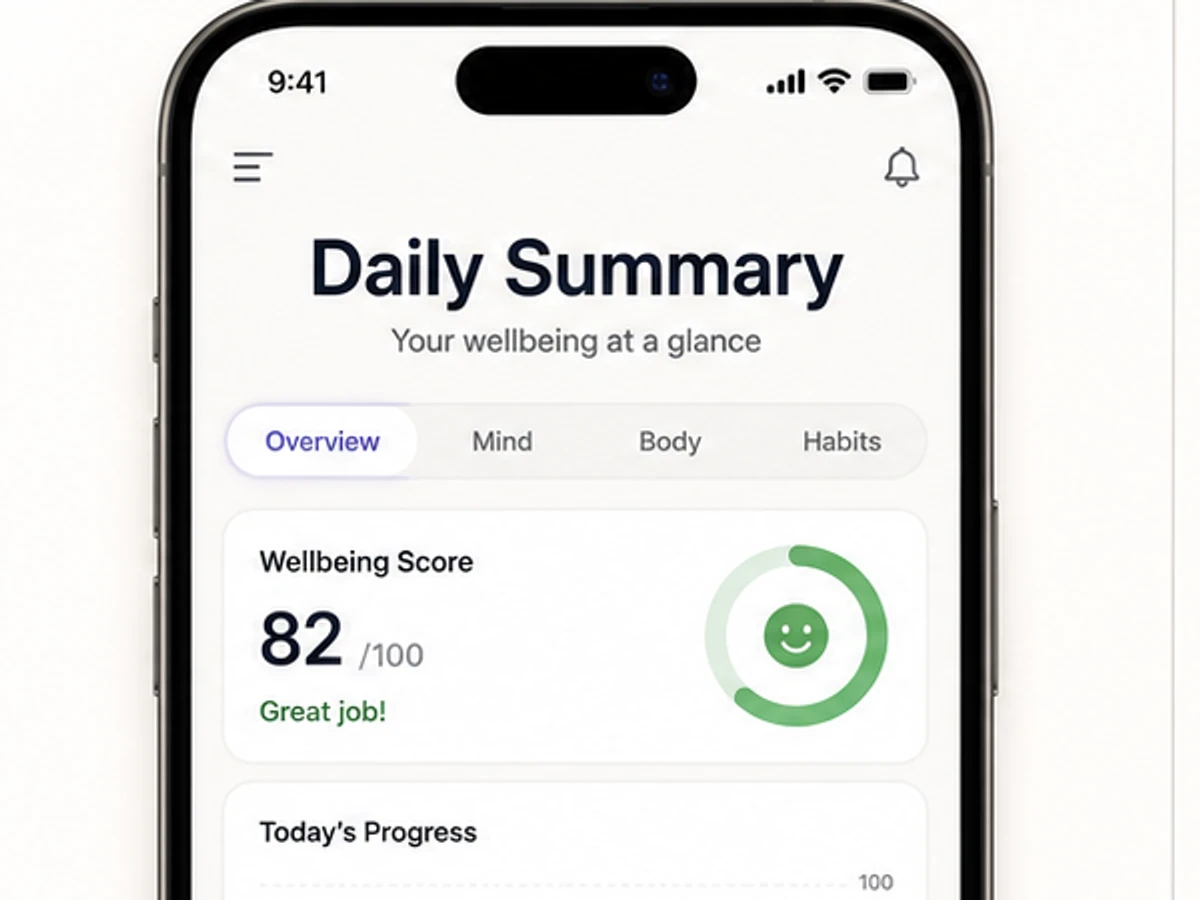
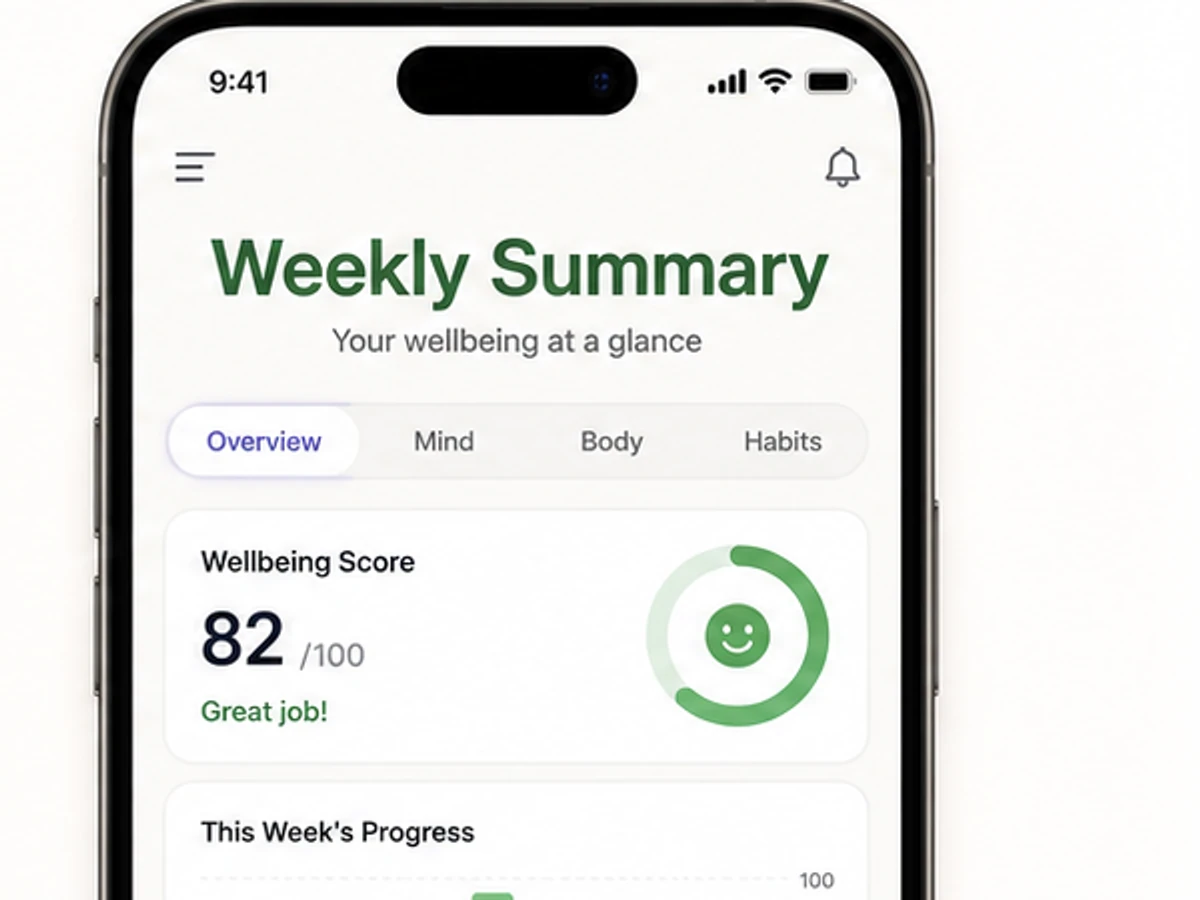
Edit text in screenshot for an app preview label
A mobile app preview changed from a daily view to a weekly view after the device artwork was approved. Replace the headline in the screenshot while preserving the phone frame, charts, cards, and spacing.
beforeDaily Summary->afterWeekly Summary
beforeafter
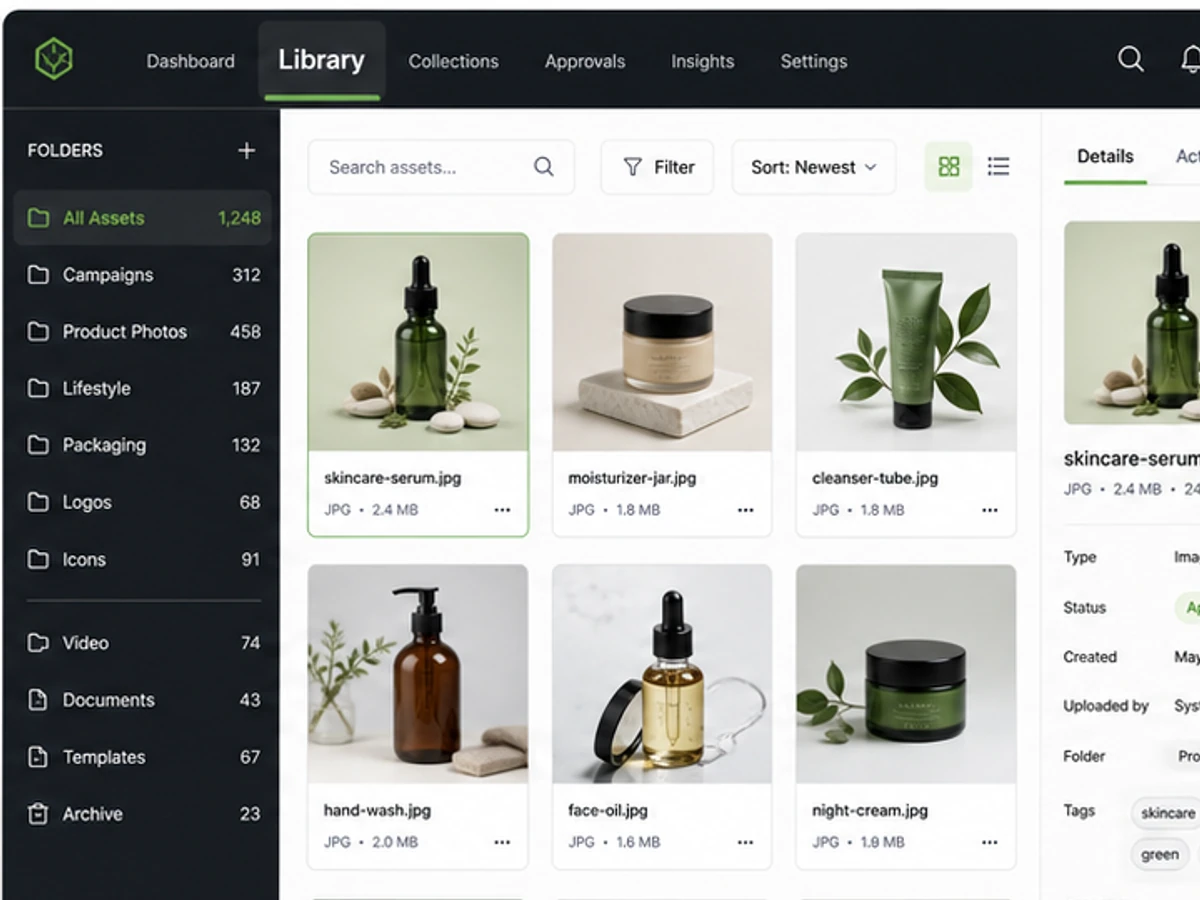
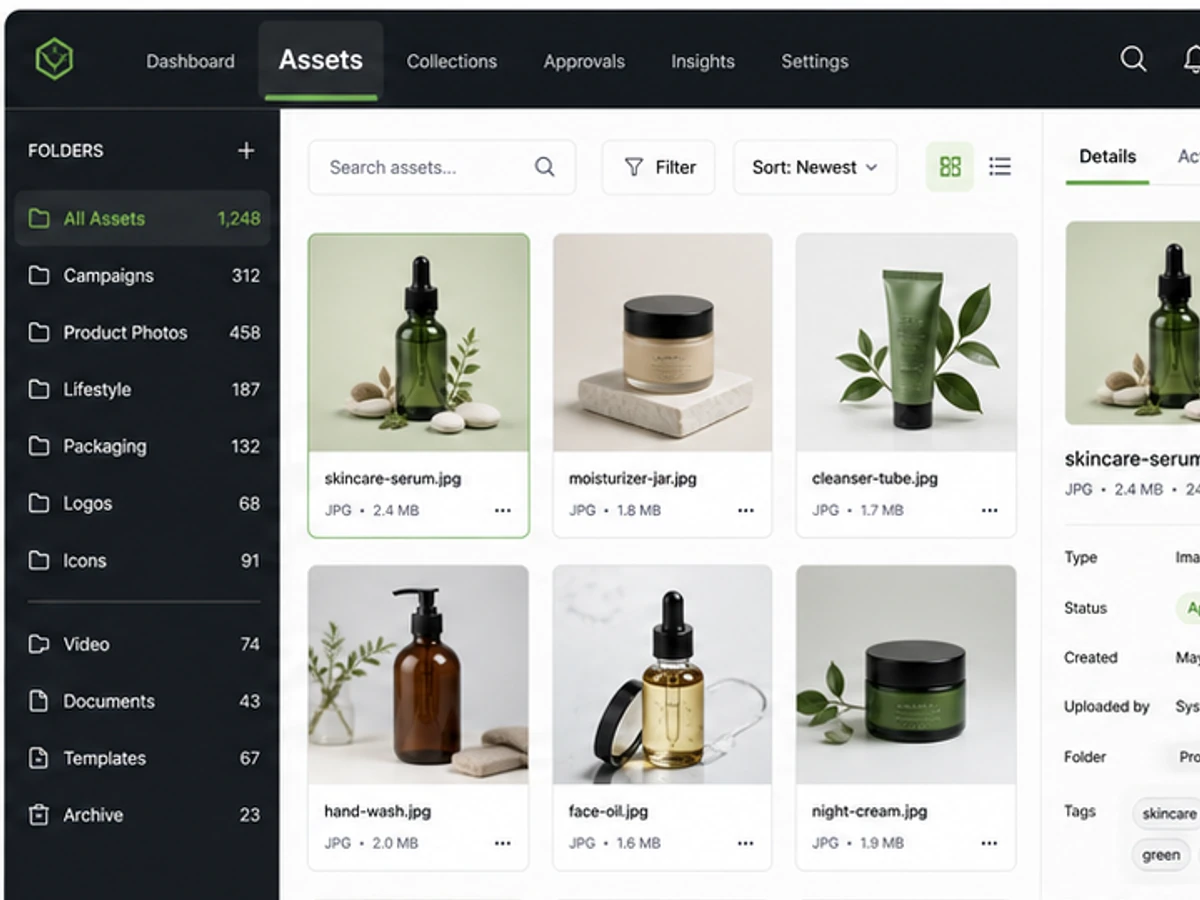
DESIGN REVIEWCONCEPT NAMING
Edit text in screenshot for an internal UI naming option
A product designer needs to compare Library with Assets in a clearly labeled internal concept. Change the navigation tab in the owned screenshot without implying a customer account, transaction, or private message was altered.
beforeLibrary->afterAssets
Use edit text in screenshot for owned product communication
Use ChangeTextImage when the screenshot belongs to your product, tutorial, app preview, support article, or clearly labeled concept deck. An edit text in screenshot workflow is useful when one visible UI string changed but the rest of the interface state remains accurate.
Verify the replacement against product truth
Before you edit text in screenshot assets, confirm the current UI label, capitalization, feature availability, platform variant, and release state. A polished screenshot can still mislead users if it shows a button, tab, or workflow that does not exist.
Keep product screenshots separate from records
Do not change chat screenshots, emails, receipts, invoices, balances, payment confirmations, ID screens, medical portals, legal records, grades, employment systems, or anything another person could treat as proof. Use the responsible system or issuer to correct those records.
Brush repeated labels with care
If the same label appears in navigation, tabs, breadcrumbs, and body copy, use Brush to target only the approved UI region. Keep timestamps, counts, account details, customer content, and unrelated interface text outside the edit area.
Review screenshot text at final display size
A replacement may look clean while zoomed in but feel cramped in a help article, app-store slide, sales deck, or mobile crop. Check wrapping, ellipsis, icon spacing, active states, weight, color, and alignment at the size where viewers will see it.
Label concepts and preserve originals
For design review or localization mockups, label the surrounding presentation as a concept or proposed copy when that matters. Keep the original capture and the edited screenshot in your asset history so reviewers can see what changed and why.
Prefer a fresh capture when it is easy
If the current app state can be reproduced quickly, a new screenshot from the live product is usually cleaner than an edit. Use the editor when the seeded account, beta build, device frame, or exact demonstration state is hard to recreate.
Never edit screenshot evidence
Do not use an image editor to rewrite what someone said, paid, approved, received, signed, or did. If a screenshot documents a real interaction, account state, transaction, or institution, leave it unchanged or correct it through the authoritative source.
Frequently asked questions.
How do I edit text in screenshot online?
Upload the screenshot, enter the current visible UI text and the accurate replacement, optionally brush the specific label area, then generate and compare the edited screenshot with the original before publishing.
Can I edit a screenshot from my own app?
Yes, for accurate product documentation, app-store creative, authorized marketing, design review, and clearly labeled concepts. Verify the replacement against the product and retain the original asset.
Can I change text in a chat screenshot as a joke?
No. An edited chat can be shared without context and used to misrepresent another person. Create a clearly fictional chat-style graphic with invented names and content instead.
Can I update a receipt or payment screen?
No. Do not alter payments, balances, invoices, receipts, confirmations, or transaction histories. Request a correction from the merchant, platform, or financial provider.
What screenshot edits work best?
Large, readable product UI labels, navigation items, help-center steps, tab names, button copy, and clearly owned concept screens work better than tiny, compressed, private, or record-like screenshots.
Can the replacement match the existing UI type?
AI tries to match the visible type style, color, spacing, lighting, texture, perspective, and surrounding background. Exact font recovery and perfect repair are not guaranteed.
Which screenshot files can I upload?
Upload JPG, JPEG, PNG, or WebP screenshots up to 10 MB. Clean captures with enough surrounding UI context usually edit best.