A renamed label can make a product screenshot inaccurate
Treat a screenshot as product communication, not as a decorative file. A label, navigation item, empty state, plan name, or onboarding message can tell a customer what they will see after they download, sign in, or follow a help article. When that visible promise changes, the old capture deserves a review even if the layout has not moved.
That does not mean every copy tweak requires a new image. The useful test is whether a reasonable viewer would be misled by the old screen. A punctuation adjustment that is invisible at delivery size may not change the asset’s message. A renamed settings area, revised capability statement, changed action label, or updated account state usually does. Do not use an image change to invent a screen, feature, record, conversation, payment, or outcome that the current product does not genuinely show.
A fresh screenshot is not automatically better if it captures an unfinished build, sample data, or the wrong device state. The goal is an accurate screen, not simply a newer file.
Make one asset record before deciding how to update it
Before opening an editor, make a small record for the screenshot you are reviewing. Include the old visible words, the replacement, the build or release that establishes the change, the original image file, its owner, its language and device treatment, and every destination that currently uses it. For an app, that list can include a store listing, product page, help-center article, onboarding page, release announcement, paid campaign, and sales deck.
This is not bureaucracy for a one-line rename. It tells you whether the image is a single exported asset or one member of a family. A settings screenshot may appear in iPhone and iPad sizes, in several languages, and inside a help article with its own surrounding instructions. Without an asset record, it is easy to correct the most visible file while leaving an older name live elsewhere.
Keep the original beside the working copy. If the image came from a design file or a repeatable test flow, record that too. Those are reasons to prefer a fresh capture; they preserve future editability and make it easier to prove which product version the asset represents.
Choose a fresh capture or a narrow correction
Use this choice only for product screenshots you own or are authorized to update. The correction path is for a stable screen with a short, confirmed copy change—not for reconstructing a release, hiding a broken state, or altering evidence-like material. If you are unsure whether the rest of the screen is still true, treat that uncertainty as a reason to recapture.
Confirm the visible product truth first
Open the current build, release notes, or product decision that establishes the new wording. Check every nearby statement that changes meaning with the label: navigation, page title, explanatory copy, button text, access state, and feature description. Expected result: you can state exactly what the screenshot should say and what it must not imply.
Recapture when the product state can be recreated
Use a clean account or fixture, navigate to the real screen, and capture the version a customer should recognize. Recheck device size, locale, theme, data, and permission state before saving. Expected result: one current image whose words, controls, and context come from the same product state.
Use a focused correction only when the exported asset is still accurate
When the exact composition is hard to reproduce but one short, confirmed label changed, preserve the original and work on a copy. Limit the change to those visible words. Compare the finished asset against the original at 100% and at the size people will actually see. Expected result: the old label is gone, the replacement reads naturally, and no nearby UI, data, or status changed unexpectedly.
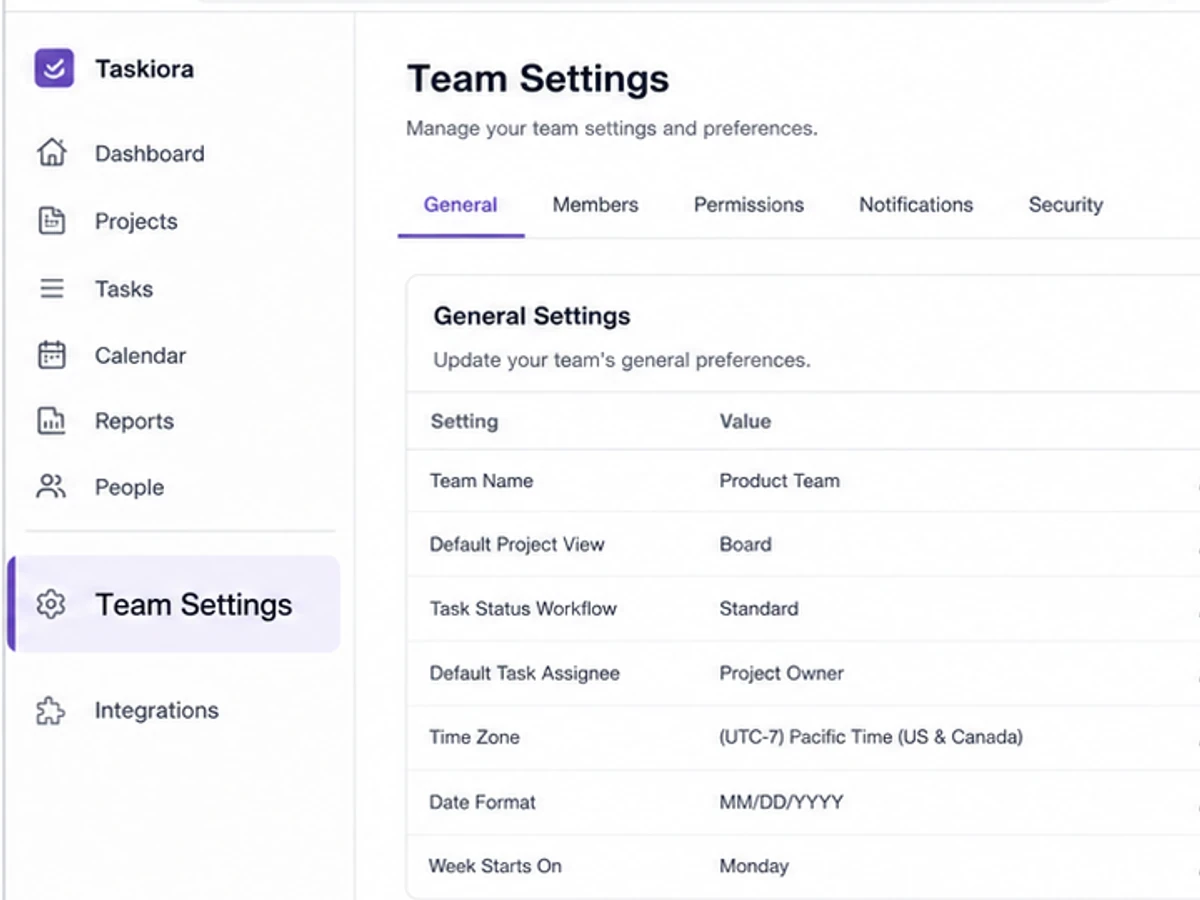
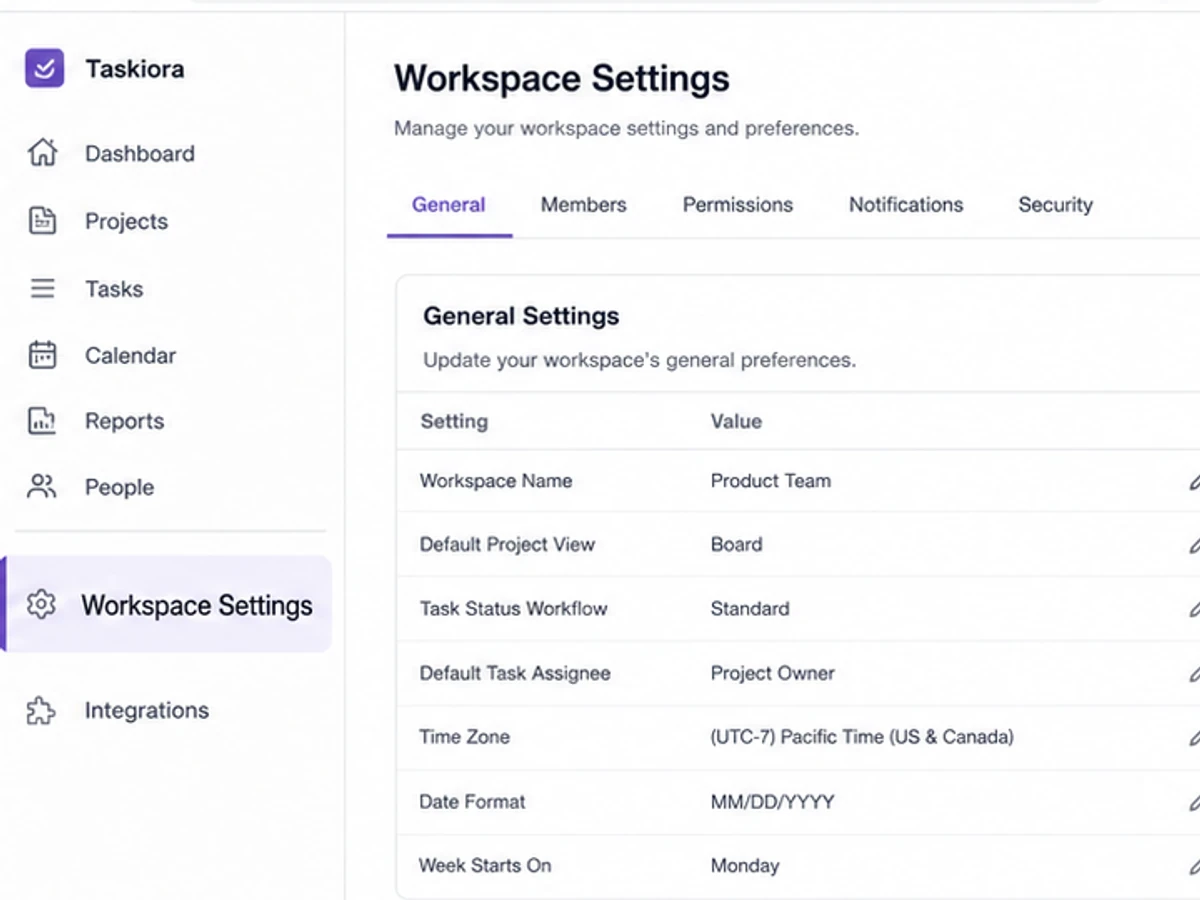
Original ChangeTextImage illustrative UI example. A product-area rename must be checked everywhere it appears in the screen; this is not an Apple, Google Play, or third-party software capture.
Check the destination requirements before you replace a file
The same screen may need a different decision in each destination. An in-product help article can often be updated with the release, while a store listing may have its own review timing, language variants, and media specifications. Check the current rules at the destination rather than assuming that a file accepted last quarter will still be the right asset now.
For App Store Connect, Apple currently accepts one to ten screenshots in JPEG, JPG, or PNG formats for an app version. Apple also says that, once a version has been submitted for review and approved, you must create a new version to update its screenshots. If the user interface is the same across device sizes and localizations, Apple permits the highest required resolution to scale down; otherwise, review the specific device and language assets instead of assuming one capture covers them all.
For Google Play, preview assets are managed in the Main store listing’s Graphics area, and Google says those assets can be shown on the store listing across test tracks after they are added. Its current listing guidance says screenshots should highlight real in-app experiences, keep added text to a minimum, and provide separate screenshot and promotional-video assets for each supported language when the screenshot contains text. That makes a copy rename a localization check as well as a visual one.
A website, help center, and announcement have different technical rules, but the editorial review is the same: the screenshot must match the product and the sentence around it. Replace a screenshot only after checking the page title, caption, alt text, nearby feature claims, and linked destination for the old label or old promise.
Publish the replacement as a small release
Replace the asset in each confirmed destination, then open the live page or preview where a customer will see it. Check the delivered crop, compression, surrounding surface, and whether the replacement still reads without zooming. For store screenshots, note the app version, device treatment, and locale you reviewed; for web pages, note the URL and publication time. This confirms that the corrected file reached the public surface.
Retire or clearly archive the old version with its source, date, and replacement status. Do not leave similarly named copies in an upload folder where a teammate can choose the outdated one later. If a different owner publishes to one of the destinations, send them the exact file and the record of what it replaces instead of relying on a verbal “use the new screenshot” handoff.
If the old screen also appears in a product walkthrough or support documentation, check whether the accompanying instructions now need a copy edit.
Final review for an updated app screenshot
- The new visible label matches the approved product wording and the current build or release decision.
- The rest of the screen still shows a real, current product state; otherwise it was recaptured or rebuilt.
- The original asset is retained, and the change is limited to an owned or authorized screenshot.
- Device sizes and languages have been checked separately where the UI or the added text differs.
- Store listing, website, help-center, campaign, and sales uses have been checked against the asset record.
- The delivered file remains readable at its actual crop and size, and the superseded file is no longer in use.