Just need to change a price in a product image?
If the new price is already approved and you only have a flattened JPG, PNG, or WebP, take this short route first. It changes a visible marketing image only; it does not replace the product-price update in the commerce system that governs the offer.
Upload the original product image
Start with the unedited marketing asset and retain a copy before changing anything.
Select the old visible price or promo text
Target only the approved price or offer wording, not the product, logo, or surrounding product details.
Enter the approved replacement text
Use the exact price, currency, and qualifying words that were confirmed for this creative.
Generate the edit and compare it with the original
Check the new price, currency, product details, and repaired background at 100% and at the actual delivery size.
Download only after the visible facts agree
Do not publish until the image agrees with the approved product record and the destination where customers will see it.
1. Confirm the authoritative price and offer before editing pixels
Find the place that actually governs the offer: the approved pricing brief, the store’s product record, a signed-off campaign plan, or the responsible merchandising owner. Record the exact amount or percentage, currency, compare-at treatment when relevant, start and end time, eligible product or variant, and any required terms. Shopify’s product-pricing documentation is one example of a commerce platform separating product prices from additional price details; the important principle is that your marketing image follows the authoritative system, not the other way around.
Write the approved replacement as it should appear in the image. “55% OFF” and “Save 55%” are not interchangeable if the campaign brief specifies one. If the source says “up to,” a minimum spend, an eligible collection, or an end date, decide whether the creative has room to show it. When it does not, route the design back for approval instead of silently removing a condition.
2. Inventory every asset that might contradict the new offer
Search the campaign folder, ad account library, email builder, storefront hero slots, social scheduler, affiliate kit, and partner handoff for the old phrase. Include cropped mobile versions and local-language variants. Save the original file and identify its current status: live, scheduled, paused, expired, or unknown. A simple asset list makes it possible to prove later which version was changed and which old creative was retired.
This is also where you choose the production method. A source design file is the cleanest path because it maintains type, layout, and future editability. A flattened JPG, PNG, or WebP can be appropriate for a short, authorized correction only when rebuilding the original design is impractical and the final result can be reviewed carefully.
3. Fit the new copy into the original design space
Do a visual fit check before generating anything. Count characters, inspect the existing line breaks, and note whether the old copy sits on a badge, over photography, or beside a product packshot. A new number may be short, but a percent sign, currency symbol, qualifier, or line-height change can still disturb the hierarchy. If the replacement is much longer, create a new layout rather than compressing the message until it is technically present but unreadable.
Keep claims precise. Do not change a discount image into a “sale” image if the approval is more limited, and do not use image editing to conceal an unavailable product, a different variant, or a changed condition. The safest image update is a small, truthful visible-copy correction tied to a confirmed source record.
4. Update only the approved visible words in the flattened creative
Use the original image as the baseline. Enter the old visible words and the approved replacement, narrowing the affected area when repeated labels or nearby detail could be changed accidentally. Keep the product, logo, pack information, offer terms, and unrelated background outside the edit target. Review the generated result next to the original at 100% and at the size used by the destination.
The original demonstration below changes a fictional product-card price from $39.99 to $29.99. It is not a real store offer and does not establish a product price; it shows the narrow kind of visible-price update this workflow is designed to review. Look for a clean removal of the old number, consistent spacing, a natural repair of the background, and no unexpected changes to the product image or branding.
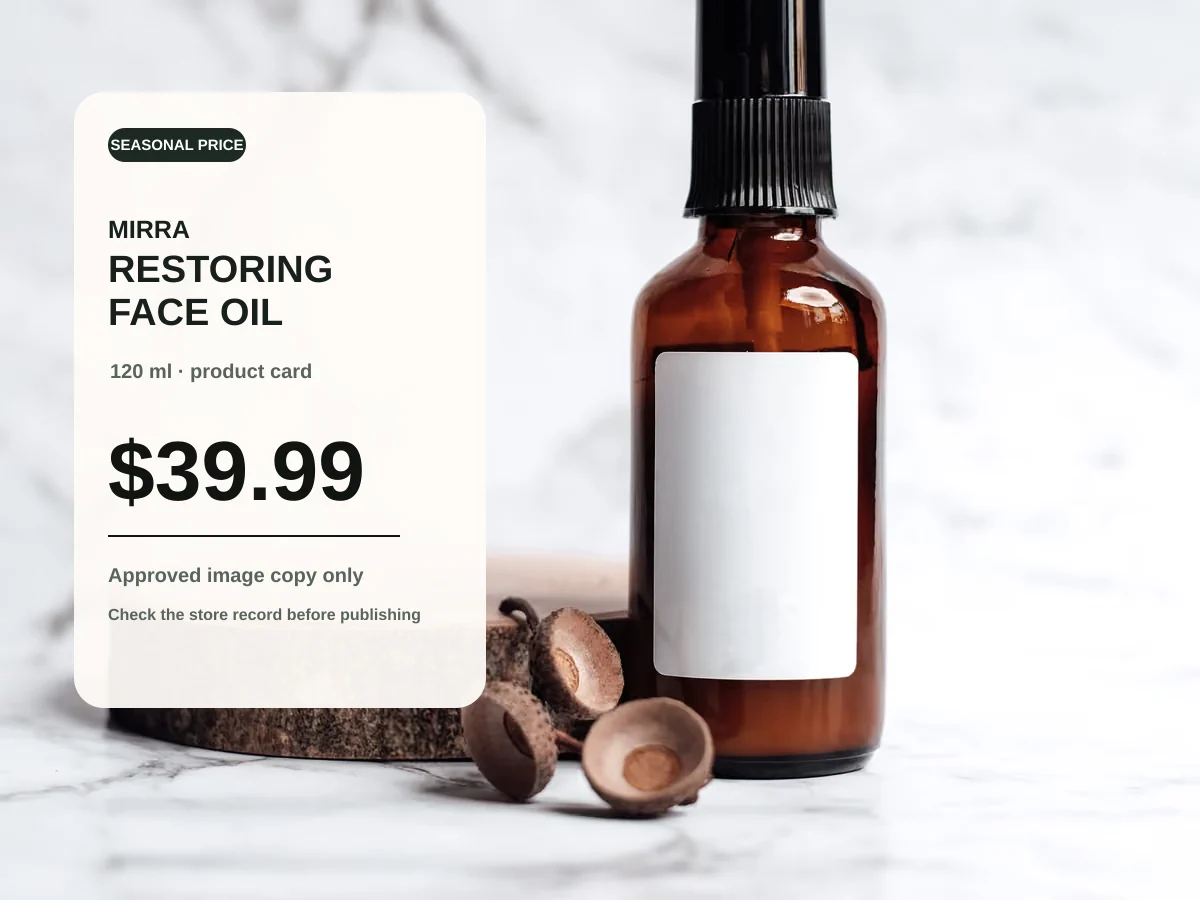
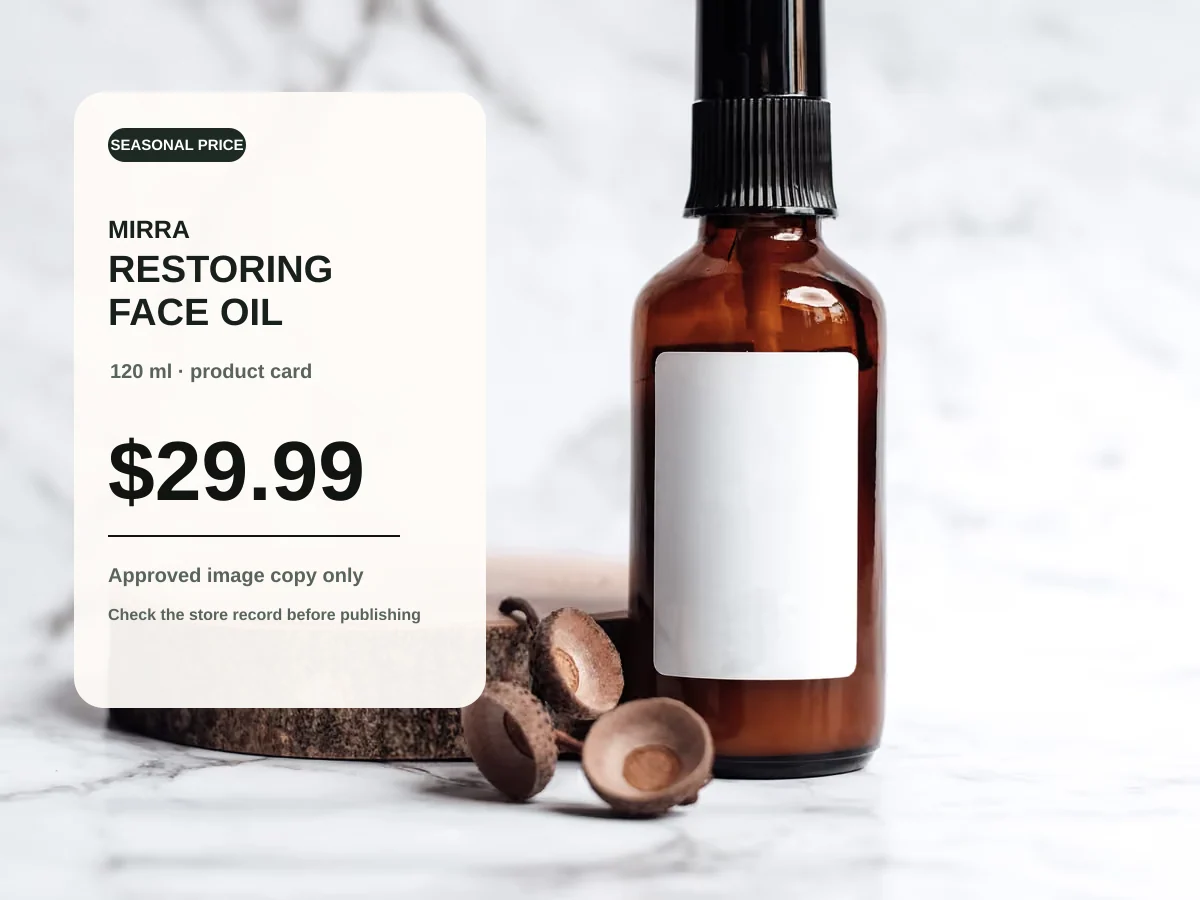
Original ChangeTextImage demonstration asset. Fictional product-card price shown only to illustrate a reviewed visible-price update.
5. Review at the real delivery sizes, not just in the editor
Open the exported creative in every intended crop: storefront tile, mobile hero, ad placement, email module, and social preview. Check that the changed price is readable, that the currency and percent signs are not clipped, and that legal copy or terms still have enough contrast. A replacement can look fine in a large working preview but become ambiguous after a platform crops it or compresses it.
Use a second reviewer for material price, eligibility, and time-limit changes. Give them the authoritative price record, the old image, the new image, and the destination URL. Their task is not to admire the design; it is to find a contradiction before a customer does.
6. Publish as one coordinated update and retire the old version
Update the product or collection page in its authoritative system, then replace or pause the old creative in every destination on the asset list. Recheck the live storefront, destination page, ad preview, email preview, and scheduled social post. Capture the final file name, approval reference, and replacement time in the campaign record so the team knows which version is current.
If you still have the original Canva design, use the source-layer path before you consider a flattened-image edit. The companion Canva guide explains that decision and the current Grab Text route. This page intentionally does not repeat Canva’s controls: its job is to keep the approved product fact and the customer-facing creative in sync.
A concise release checklist for updated promo images
- The price, offer wording, dates, eligible product, and conditions match the authoritative record.
- The image is owned or authorized, and the original is retained with the approval context.
- The new copy fits the design and remains readable in each delivery crop.
- The product, logo, product pack, background, and unrelated text did not change unexpectedly.
- Store, ad, email, landing page, and scheduled posts no longer show a conflicting creative.
- The prior asset is archived or retired so it cannot be reused by accident.