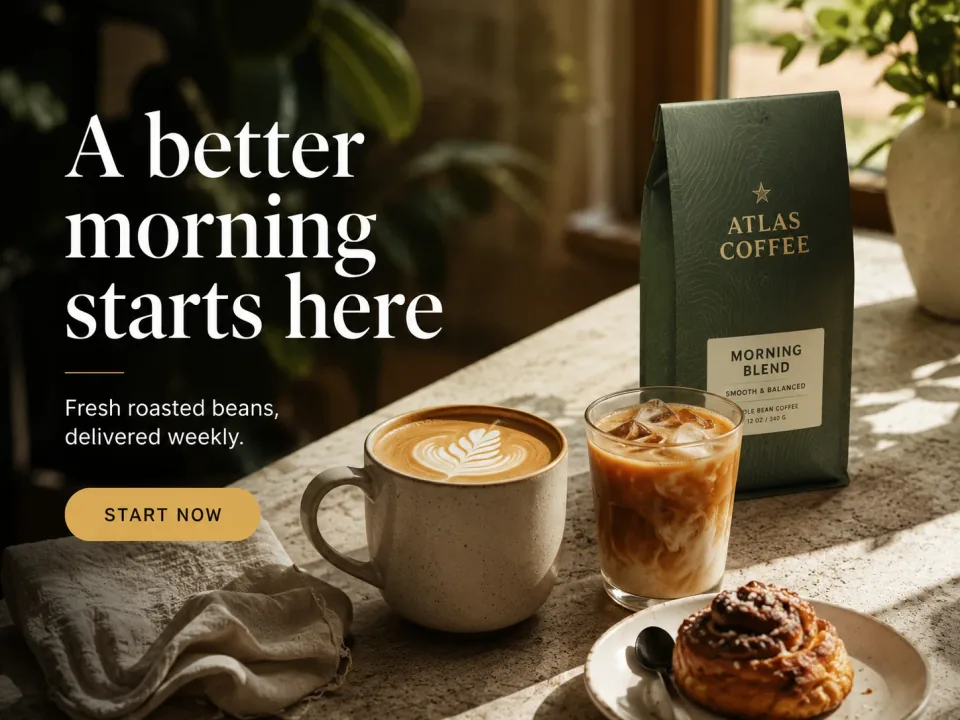
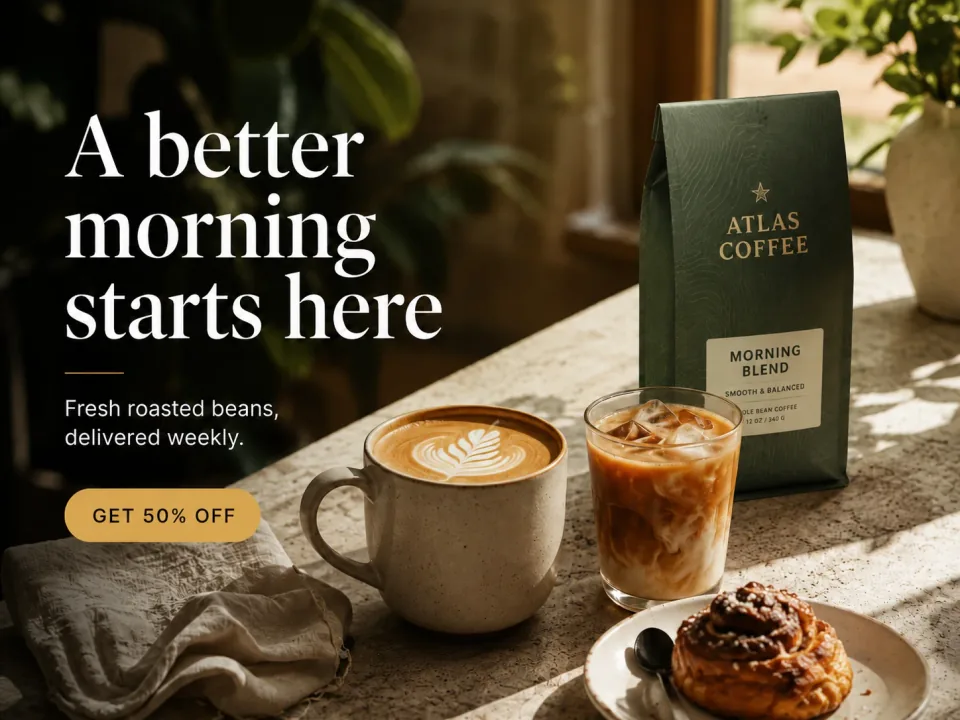
Change text in image files when the editable source is missing. Update a word, line, label, or date while ChangeTextImage rebuilds the selected text area and blends it back into the existing composition.
Yes. You can change text in image files by reconstructing the pixels behind visible lettering and rendering replacement wording into that area. This is most useful when you only have a JPG, PNG, or WebP export rather than the layered design file. Results depend on legibility, contrast, texture, and perspective, so review small details instead of treating the output as a recovered source document.
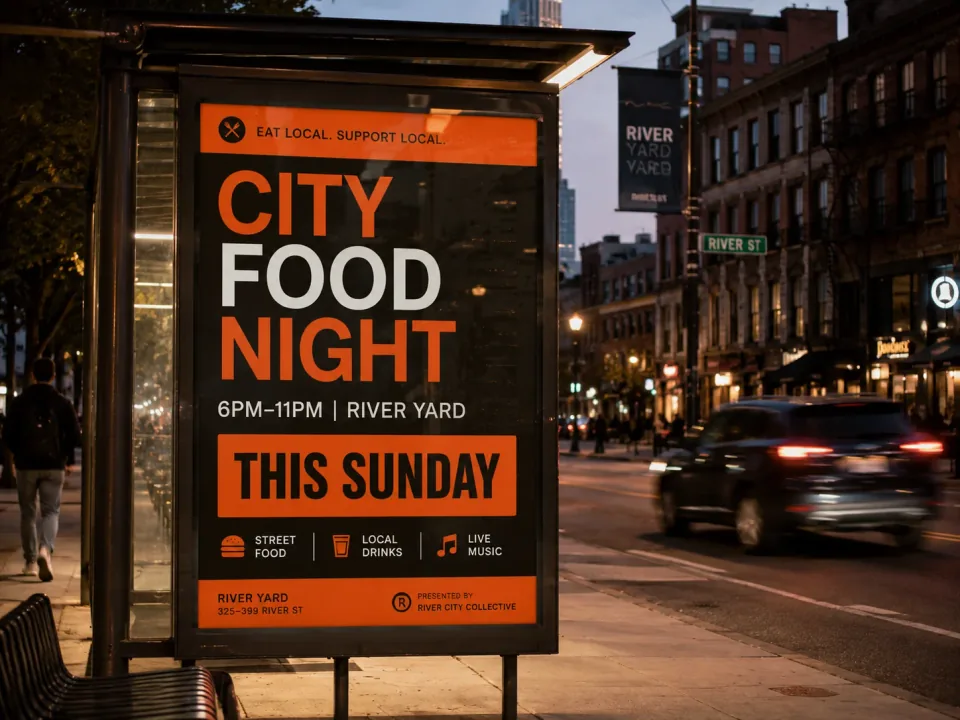
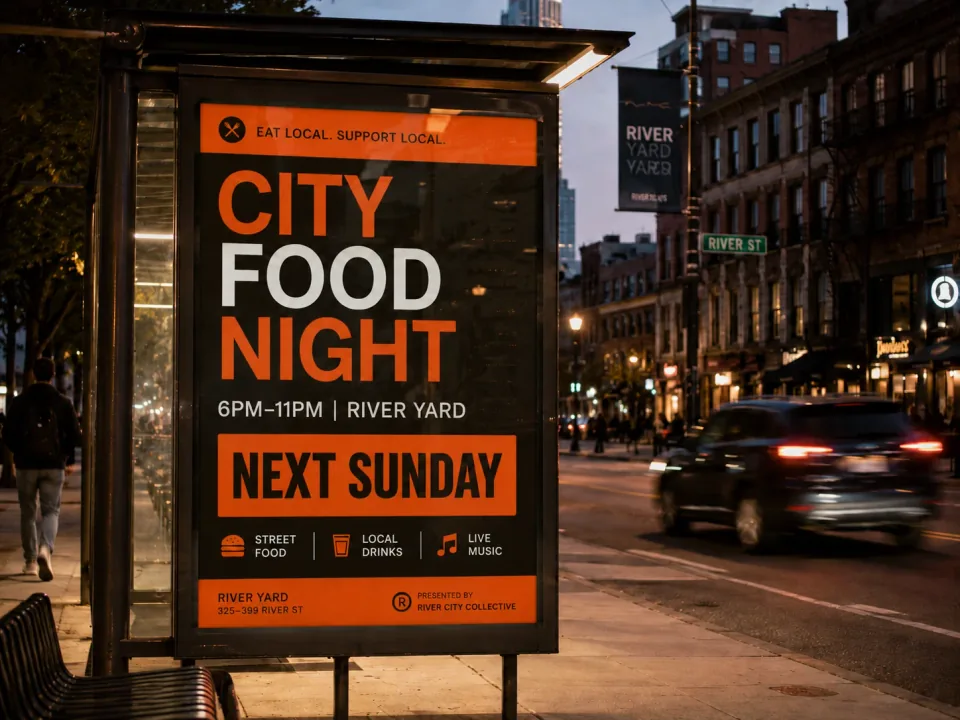

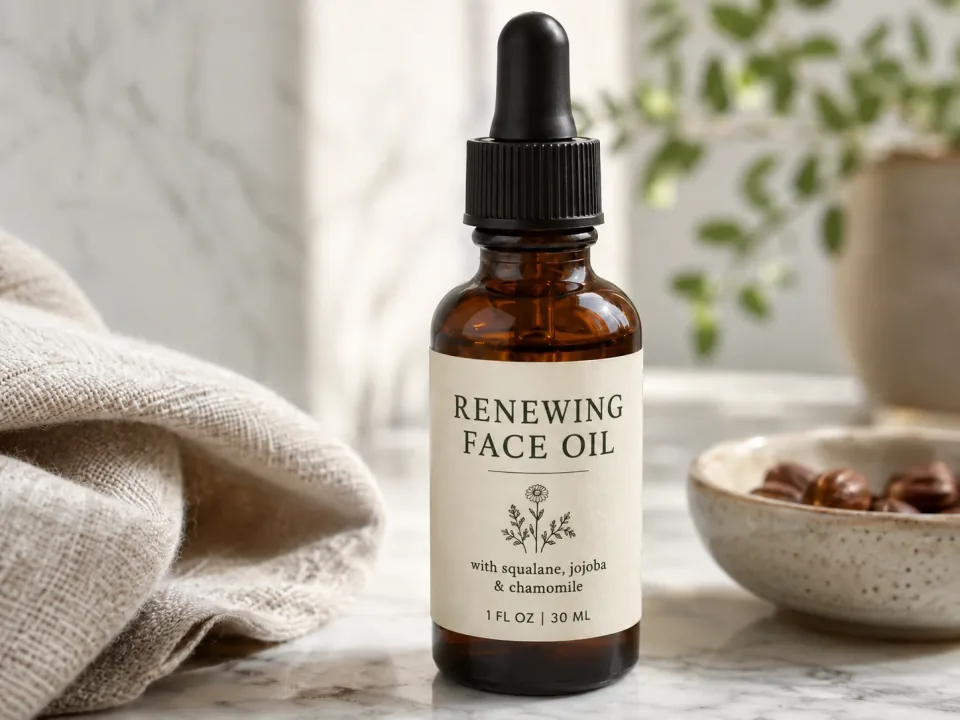
Adding text places fresh lettering on top of existing pixels. Changing text must first account for what the old letters cover.
A flattened image stores letters, shadows, texture, and background as one pixel grid. There is no live text box to reopen. A useful replacement workflow therefore has two connected jobs: remove the visible old wording without leaving a bright patch, then create new lettering that belongs in the same visual environment.
OCR has a different purpose. It extracts readable characters so they can be copied or searched, but it does not repair the image or preserve the composition. ChangeTextImage uses the old wording as a location clue and the new wording as the requested visual update. Use the complete phrase when similar text appears more than once.
This workflow is best for a small, intentional correction. If every paragraph, image, color, and alignment must change, rebuilding the design in a layout editor will usually provide better control and a reusable source file.
Treat the change as a short editorial review rather than a one-click promise.
Start with the largest, least-compressed version you are licensed to edit. Upload JPG, JPEG, PNG, and WebP files up to 10 MB. Avoid screenshots of screenshots when the original export is available, because accumulated compression makes thin strokes and background repair harder to judge.
Enter the old text with its punctuation and capitalization. If the same words appear in several places, include enough surrounding wording to identify the intended phrase. Ask for one coherent change per generation and check every matching occurrence afterward.
Check spelling, line breaks, alignment, edges, shadows, and repeated patterns behind the letters. AI tries to match the visible type style, color, spacing, lighting, texture, perspective, and surrounding background. Exact font recovery and perfect repair are not guaranteed. If the wrong occurrence changes, keep the original and try a more complete phrase, or use the editable design for exact control.
The geometry of the original line still matters even when the wording is generated.
A replacement with roughly similar length and rhythm is easier to fit naturally. If the new message must be much longer, shorten the copy, split it intentionally, or plan a broader redesign rather than squeezing letters until they become unreadable.
Notice whether the old line is a headline, label, caption, or badge. Match its visual role: a small secondary note should not become louder than the main message, even if every new character is technically legible.
Compare baselines, margins, nearby icons, repeated letter height, and the direction of lighting. These references make it easier to spot a replacement that is semantically correct but visually out of place.
Pixel-based replacement is a recovery path, not a substitute for owning editable source files.
Long legal copy, multi-column instructions, or tightly aligned tables are poor candidates. Use the source document or recreate the layout so line wrapping, accessibility, and future corrections remain manageable.
Blur, glare, heavy compression, hands, stickers, and complex textures can hide the type characteristics or background. A cleaner input or a manually rebuilt design may be necessary.
Use only images you own or are licensed to edit, and never use the service to falsify records or deceive another person or institution.
Learn what visual font matching can preserve and where a flattened image limits precision.
Use a focused proofreading workflow for one incorrect word or punctuation mark.
Update a date printed in a poster or graphic without confusing it with EXIF metadata.
Handle headlines, dates, cities, and sponsor lines in a busier promotional layout.
Use the complete visible text as a location clue and review the result as carefully as any other published design.
No. It produces a new image by reconstructing and rerendering a chosen area. It cannot recover the original font file, layer names, text box settings, or complete design history from a flattened export.
Upload JPG, JPEG, PNG, and WebP files up to 10 MB.
Sign in to receive one lifetime preview credit with a full-resolution download for the account. This is a one-time preview, not an unlimited free plan.
AI tries to match the visible type style, color, spacing, lighting, texture, perspective, and surrounding background. Exact font recovery and perfect repair are not guaranteed.
Enter the complete visible phrase, including nearby wording that helps identify it. Review every matching occurrence in the output. If identical phrases remain ambiguous, use the original editable design for exact control.
Paid generations use credits and support full-resolution output.
ChangeTextImage does not add a site watermark to generated downloads.
Confirmed provider or app failures return the spent credit.
These primary and technical references support the guidance on this page.