

Edit text in a banner ad you already have. Upload the image, replace a headline, offer, or call to action, and compare the result with the original. Give an existing creative a new message without starting with a blank canvas.
Yes. This banner ad text editor works with words already inside the image. Enter the visible text and its replacement. It suits a focused update to an exported creative. The result is an image to review and download; original design layers are not recovered.
Compare a running-campaign headline, a camping-sale offer, and a coffee-ad CTA. These illustrative creatives show intended text changes, not results produced by this editor. Load an original to try your own edit.


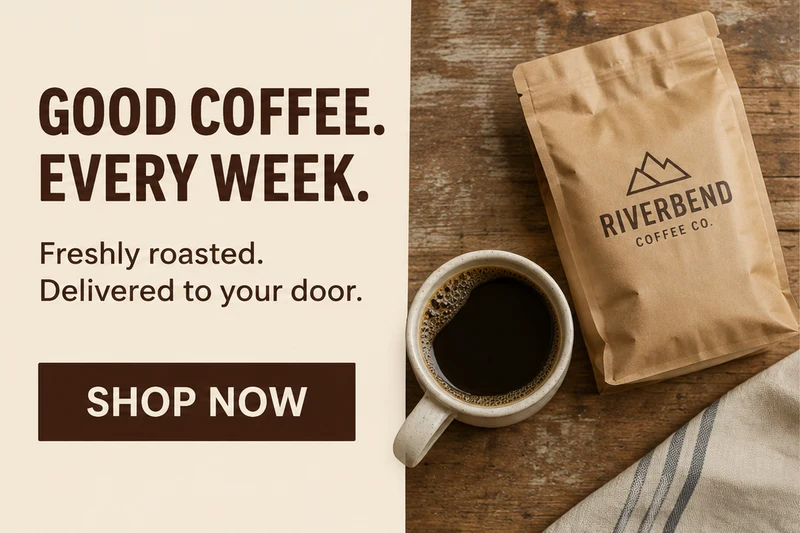
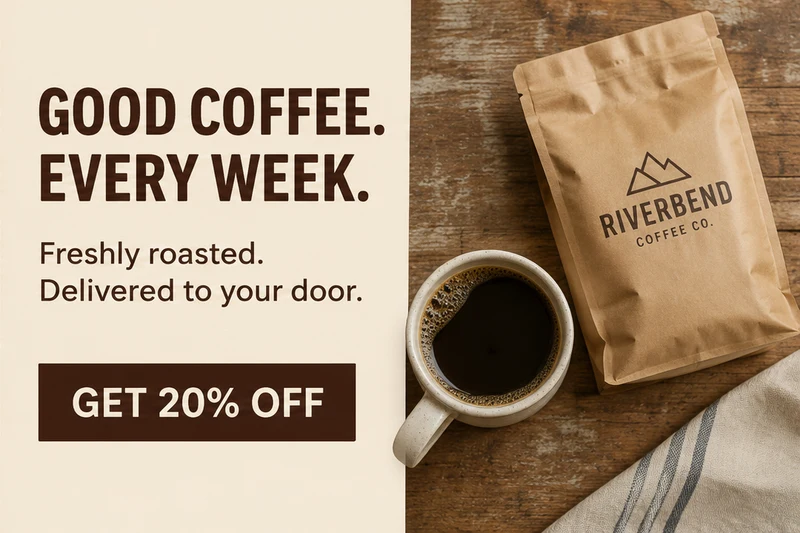
Start with your existing creative and one clear change. The editor above handles the upload, replacement, and preview in the same place.
Upload JPG, JPEG, PNG, and WebP files up to 10 MB. Choose a clear export before it has been compressed by a messaging app. Keep the original so you can compare the text, product, and background after the edit.
Enter the visible headline, price, or CTA in Original text, including punctuation. Add your new wording in Replacement text. Use the complete phrase to give the edit context, and start with one message element.
Generate the edit and compare it with the upload. Read the changed words and inspect the nearby logo, offer terms, and image edges. Download the result and preview it in the actual ad placement before replacing the current creative.
When the visual still fits the campaign, focus on the wording that needs attention.
Turn a feature into a clearer benefit, correct a typo, or update a launch message. Keep the idea compact enough to scan. To compare two headlines, save both versions and run the comparison in your advertising platform.
Update an approved discount, sale date, or shipping message while the photography still works. Check every occurrence of the old offer, including small print. Update the destination page too, so visitors see the promise that brought them there.
Replace a vague CTA with an action that matches the destination. A button drawn inside an image remains part of that image. Set its link in the website, email, or ad platform where you publish it.
Choose wording that reads naturally inside the space you already have.
Wide letters can take more room than a longer phrase with narrow ones. Check the headline width, line breaks, and button padding. If the replacement crowds the product, shorten it or adjust the source design.
An offer can appear in a headline, badge, and footer. Use the complete phrase to identify the intended wording, then inspect every occurrence. If you need exact control over repeated offers, use the original editable creative.
Review at full size for stray marks, then at the display size for readability. Check small qualifiers and thin type carefully. Preview each placement; replacing text does not automatically create a layout for every banner size.
| What you have | A useful next step |
|---|---|
| An exported banner with one outdated line | Replace the line here and compare the generated text and surrounding design before using the result. |
| A design with editable text layers | Update those layers in the original editor. This keeps your typography settings available for future revisions. |
| A new message that needs more space | Rework the source layout or shorten the copy. Avoid squeezing a paragraph into a small headline area. |
| A full set of new sizes or animated ads | Prepare these in your design or animation workflow. This tool edits a still image. |
Keep promotional language consistent with the physical product and commerce listing.
Update poster headlines, dates, venues, and sponsor information, then review the full image.
Apply platform readability and content-framing checks to editorial headline variants.
Use the canonical pricing page for current packages and production-output terms.
Bring your existing image and the words you want to change. Start with a headline, an offer, or a CTA, then review the difference.
Upload JPG, JPEG, PNG, and WebP files up to 10 MB. The text can be flattened into the image; you do not need a separate text layer. A clear export gives you more detail to inspect than a small screenshot or a heavily compressed download.
You can edit either area. Start with one replacement, inspect it, and make the next change when the first looks right. Check similar phrases elsewhere in the ad as well. Keep the original for comparison.
AI tries to match the visible type style, color, spacing, lighting, texture, perspective, and surrounding background. Exact font recovery and perfect repair are not guaranteed. Check distinctive letters, outlines, shadows, and spacing in your result. If your brand requires a specific licensed font and exact type settings, edit the source design with that font instead.
Try a shorter action with the same meaning. Compare the space around the words as well as the lettering. If the button needs to be wider or the headline needs another line, adjust the source layout.
Yes. Enter the complete offer or date, including its symbols and punctuation. Check that the new wording agrees with the current promotion, the destination page, and any remaining terms in the image. The editor changes visible wording; it does not update your store or campaign schedule.
Yes, you can prepare a second creative with a different headline or CTA. Save the versions with clear names and run the comparison in your advertising platform. ChangeTextImage does not deliver ads, track conversions, or decide which version performs better.
No. It updates text in an uploaded still image. Review and prepare any additional dimensions, file formats, or animation separately. Advertising platforms have their own asset requirements, so check the final file against the specifications of the placement you intend to use.
Sign in to receive one lifetime preview credit with a full-resolution download for the account. This is a one-time preview, not an unlimited free plan. Use the example buttons to load a sample and explore the editing workflow. Paid generations use credits and support full-resolution output.
These primary and technical references support the guidance on this page.