
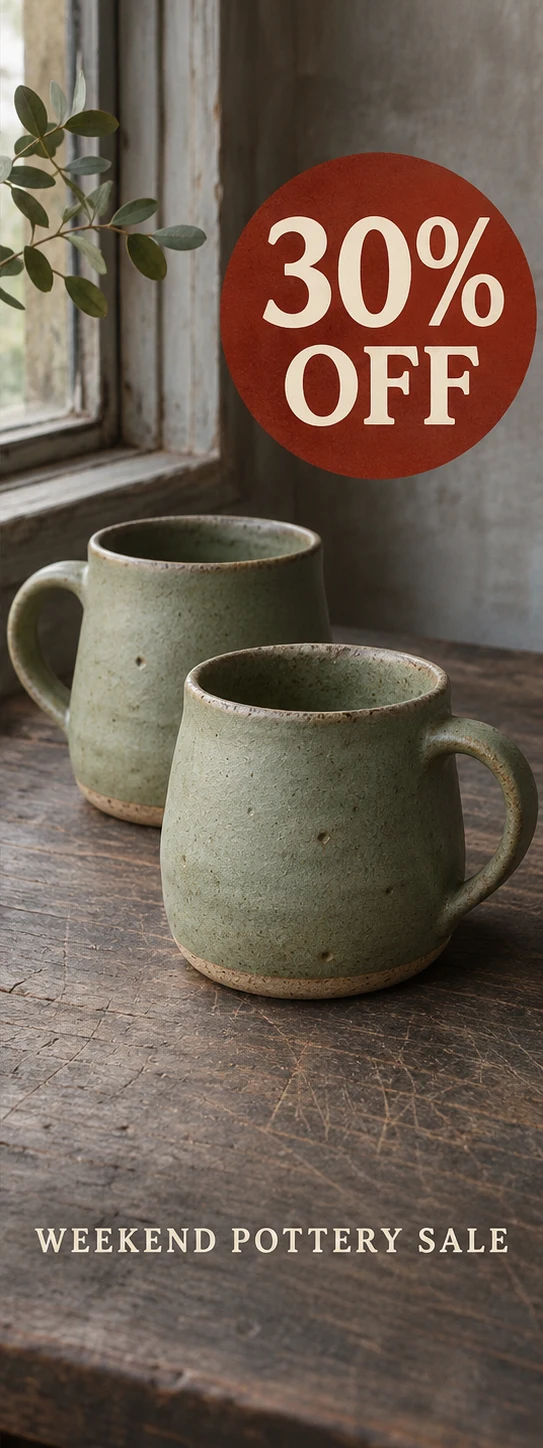
Edit text in a product photo to update a price, correct a label, or refresh a promotional caption. Upload your image, replace the words, and compare the result before downloading.
Yes. ChangeTextImage replaces existing words in a saved product photo or exported graphic. Enter the old and new text, then review the result before using it. If you have editable design layers, use them for precise typography.
Compare a pottery-sale badge, a candle caption, and a coffee-bag label. These illustrative examples show intended text changes, not results produced by this editor. Load an original to try your own edit.

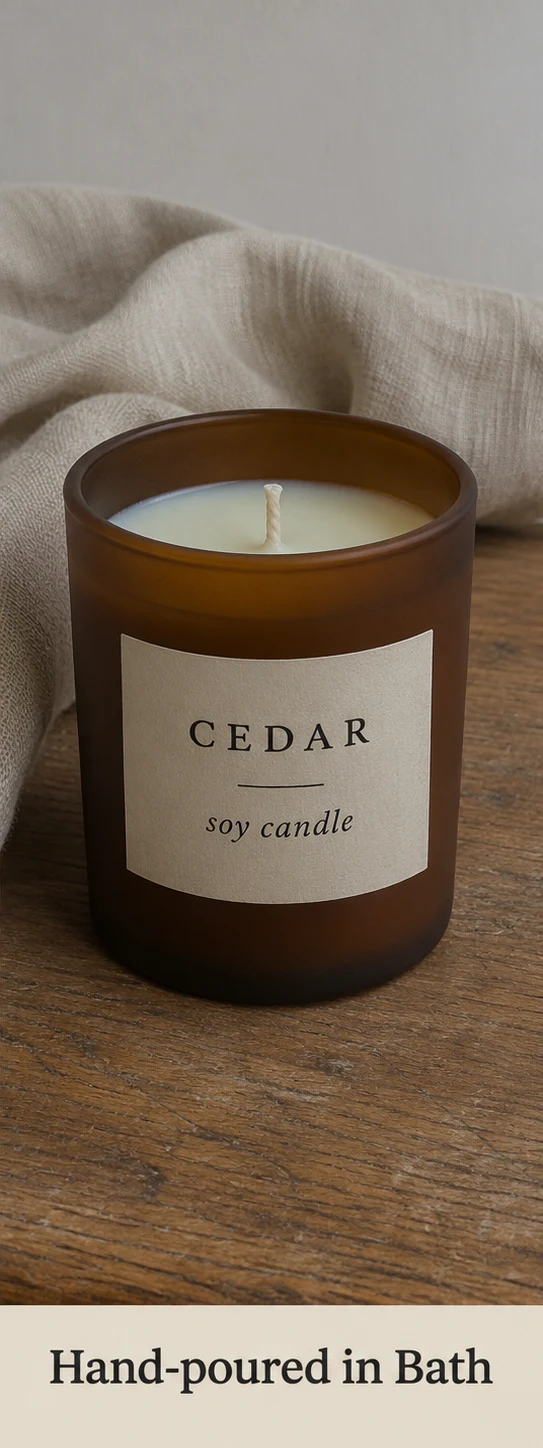
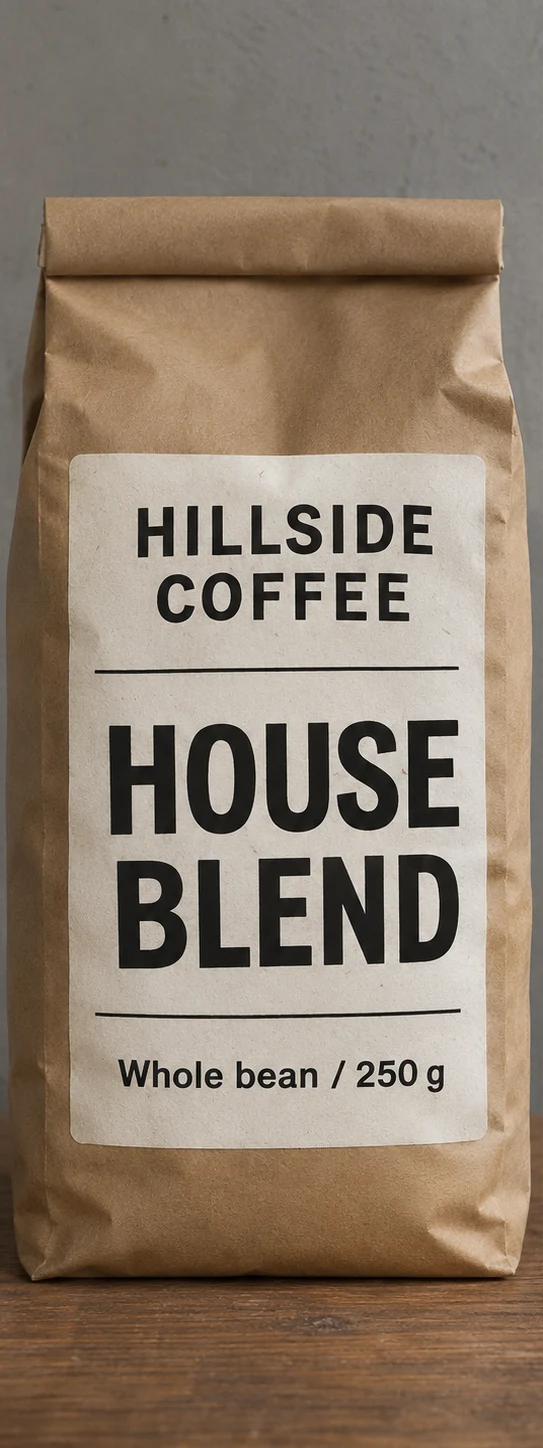
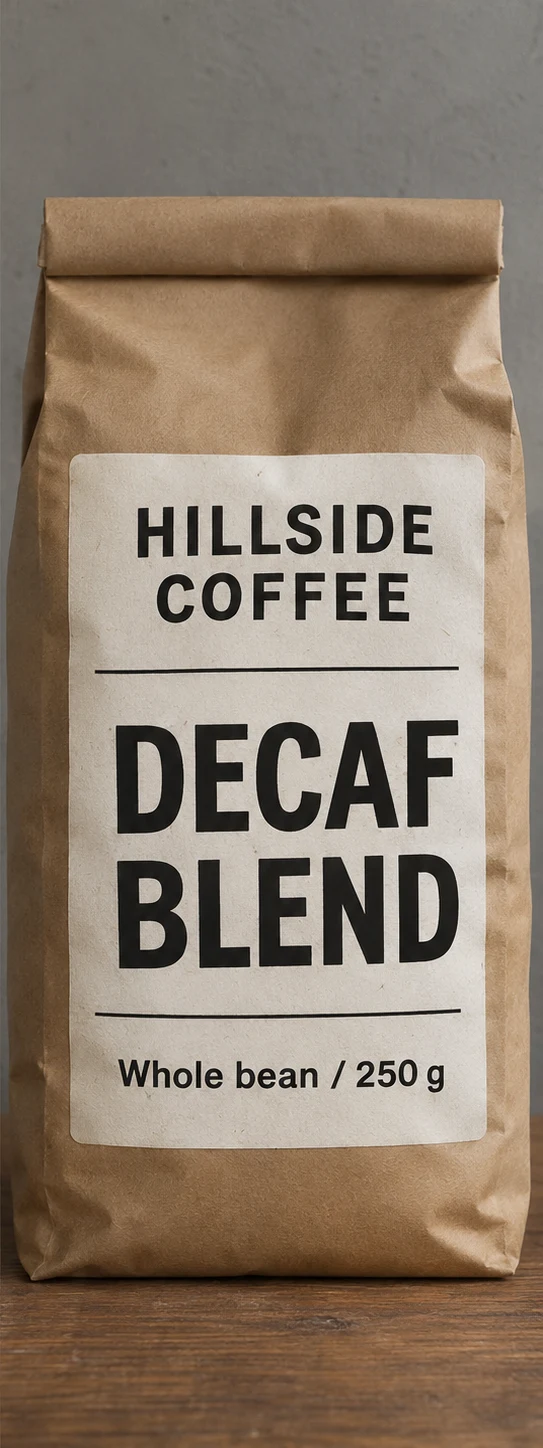
Keep your original nearby and make one clear text change at a time.
Upload JPG, JPEG, PNG, and WebP files up to 10 MB. Choose the clearest image you have permission to edit. An original export usually gives the letters and product edges more detail than a screenshot taken from a shop page.
Enter the current text and the replacement, including punctuation and units. Use the complete label or caption when the same words appear more than once. Start with one text change and review the other occurrences afterward.
Inspect the wording and the surrounding image together. Look at the product edges, label texture, and small details, then check the graphic at its intended display size. Download the result you approve and upload it to your chosen destination.
The best starting point is a useful photograph with a short piece of outdated or incorrect text.
Refresh a price, seasonal caption, or offer badge in a graphic you already use. Keep the photographed item as the visual reference. Use the edited version where promotional text is appropriate, such as your campaign page or social feed, and check the destination’s image rules.
Correct a short feature caption or a typo in an explanatory product image. Start with the approved product information and replace the inaccurate wording. A concise correction is easier to compare with the original than a complete rewrite of every callout.
Explore a product name or short label on a clearly identified mockup so a teammate can review the wording in context. Keep the production label in your normal design workflow, where dimensions, print settings, and required information can be checked directly.
| Your starting point | A useful next step | What to check |
|---|---|---|
| Exported product graphic | Replace a short price, badge, or caption here. | Match the wording to the current product and offer. |
| Clear photograph of a label | Try a targeted edit and inspect the result closely. | Look for changes in perspective, reflections, and nearby letters. |
| Editable design file | Update the original text layer in its design app. | Keep precise font, spacing, and layout control. |
| Different packaging or product | Start with a photograph of the current item. | Show the actual shape, color, quantity, and packaging. |
Before publishing, give the small details the same attention as the headline.
Zoom in on every letter and number. Check decimal places, currency signs, capitalization, and spaces between a value and its unit. Read nearby text as well: a product caption can look convincing at a glance while one character still needs attention.
On curved bottles, glossy boxes, or textured labels, compare the edited area with the original. Look for uneven lettering, altered highlights, or softened borders. If the text is too small or obscured to read clearly, try a better source image before attempting the replacement again.
View the image at the size shoppers will see on mobile and desktop. Check whether the caption fits after cropping or resizing. Keep the approved original and replacement clearly named so you can identify the right photo for each current listing or promotion.
Test an authorized campaign headline or CTA while keeping claims and landing pages aligned.
Apply operational checks to customer-facing names, prices, and dietary labels.
Add trademark, licensing, and vector-production safeguards to wordmark edits.
Confirm ownership and avoid deceptive product, certification, or document changes.
Upload your product image and start with one price, label, or caption. Compare the result with the original, check the details, and download the version that fits your current product or promotion.
Replace existing text such as a price, product caption, promotion badge, or short label. It is useful when you have the exported image but cannot access its editable design. Start with one intended change and review the full result before publishing.
AI tries to match the visible type style, color, spacing, lighting, texture, perspective, and surrounding background. Exact font recovery and perfect repair are not guaranteed. Compare the new letters with the surrounding text, especially on shiny packaging or curved surfaces. Similar-length wording gives you a more practical starting point than squeezing a long sentence into a short label.
You can try a short label edit, including on an approved packaging mockup. For a live product listing, check that the finished image still shows the item buyers receive. If the actual packaging has changed, use a current photograph instead of relying on a text correction.
Enter the complete label or caption to give the edit more context, then check every occurrence after generation. The editor may still change the wrong occurrence. If you need exact control over one of several identical labels, use the original editable design.
Check the requirements for the destination and image position. A promotional graphic for your own campaign page may be unsuitable as a marketplace main image. Google Merchant Center, for example, excludes promotional overlays such as prices and discount calls to action from main product images.
Sign in to receive one lifetime preview credit with a full-resolution download for the account. This is a one-time preview, not an unlimited free plan. You can first load one of the examples to see how its original image and replacement wording fit into the editor. Paid generations use credits and support full-resolution output.
ChangeTextImage does not add a site watermark to generated downloads. Review your download at its intended display size before using it. Keep your original file so you can compare the product, label, and surrounding details when making another version.
No. This editor changes the uploaded image. Update your store’s price, description, and promotion settings separately, then upload the approved graphic. Check them together before publishing so the image and the purchase page show the same offer.
The result is a flattened image, not a layered design or a print-ready packaging file. If you need repeated layout changes, exact typography, or production artwork, keep an editable master in your design app and use this editor for focused image updates.
These primary and technical references support the guidance on this page.